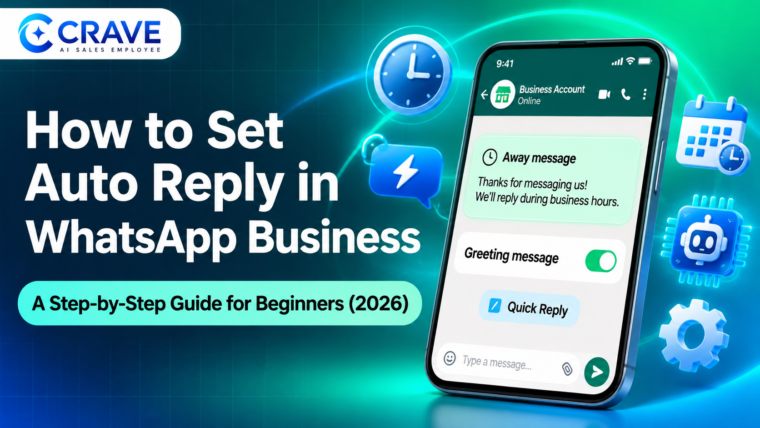


To set auto reply in WhatsApp Business, open the WhatsApp Business app, go to the Tools tab (or Settings, then Business tools), tap Away message, turn on Send away message, write your text, choose a schedule, pick your recipients, and tap Save. For first-time customers, set up a Greeting message in the same place. Both features are free, and both take about five minutes.
That is the short answer. This guide walks you through every step on Android and iPhone, explains which auto reply to use and when, gives you copy-ready message samples, and shows what to do when basic auto replies are no longer enough.
Why does this matter? WhatsApp passed 3 billion monthly users in 2025, and many of your customers already message businesses there before they call or email. When a message sits unanswered for hours, buyers often move on to the next shop. A well-written WhatsApp Business auto reply tells them you received the message, sets expectations, and keeps the conversation alive.
What Is Auto Reply in WhatsApp Business?
Auto reply in WhatsApp Business is a set of built-in tools that send a pre-written message to customers automatically, without you typing anything. According to the WhatsApp Help Center, these messaging tools are part of the free WhatsApp Business app, which is designed for small businesses.
The app gives you three tools. Only two of them are truly automatic:
- Away message (automatic): Sends a reply when you are closed, busy, or on vacation, based on a schedule you choose.
- Greeting message (automatic): Welcomes customers who message you for the first time, or who come back after 14 days without chatting.
- Quick replies (manual shortcut): Saved answers you send by typing “/” in a chat. They save time, but you still press send yourself.
Important: The regular WhatsApp Messenger app (the personal app) does not have an auto reply feature. You need the WhatsApp Business app, which is free on Android and iPhone.
Before You Start: 4 Things to Set Up First
Spend two minutes on these basics before you set auto reply in WhatsApp Business. They make your automatic messages work better.
- Install WhatsApp Business. Download it from the Google Play Store or Apple App Store and register your business number. You can move an existing number from personal WhatsApp to the Business app.
- Complete your business profile. Add your business name, category, address, website, and description. Customers see this when they open your chat.
- Add your business hours. This is essential. The “Outside of business hours” schedule for away messages only works if your hours are saved in your business profile.
- Keep your phone online. Greeting and away messages are sent from your device, so your phone needs an active internet connection for them to go out.
How to Set Auto Reply in WhatsApp Business (Away Message)
The away message is the most common WhatsApp auto reply. Use it for nights, weekends, holidays, and busy hours. The steps below follow the official WhatsApp Help Center guide to away messages.
How to set auto reply in WhatsApp Business on Android
- Open the WhatsApp Business app.
- Go to the Tools tab. On some versions, tap the three dots (More options), then Business tools.
- Tap Away message.
- Turn on Send away message.
- Under Away message, tap the text to edit it. Write your message, then tap OK.
- Tap Schedule and choose when the message should be sent.
- Tap Recipients and choose who should receive it.
- Tap Save.
How to set auto reply in WhatsApp Business on iPhone
- Open WhatsApp Business on your iPhone.
- Go to the Tools tab (on older versions, Settings, then Business tools).
- Tap Away message.
- Turn on Send away message.
- Under Message, tap the text, edit it, and tap Save.
- Tap Schedule and pick your timing.
- Tap Recipients and select who gets the reply.
- Go back to confirm your settings are on.
Away message schedule options explained
WhatsApp gives you three schedule choices:
- Always send: The away message goes out every time someone messages you. Use it only for a vacation or a temporary closure.
- Custom schedule: The message is sent only during a start and end date and time you set. This is ideal for a holiday weekend or a staff training day.
- Outside of business hours: The message is sent only when you are closed, based on the hours in your business profile. This is the best choice for most businesses.
Away message recipient options explained
You also control who gets your away message:
- Everyone: All customers who message you.
- Everyone not in address book: Only new numbers not saved in your contacts. Good if regulars already know your hours.
- Everyone except…: Everyone, except contacts you exclude, such as suppliers or family.
- Only send to…: Only the contacts you select.
How to Set Up a WhatsApp Business Greeting Message
A greeting message is your digital “Welcome, how can we help?” It is the first thing a new customer sees, so it shapes their first impression. Here is how to set it up, based on the WhatsApp Help Center greeting message guide.
Greeting message steps on Android
- Open WhatsApp Business and go to the Tools tab.
- Tap Greeting message.
- Turn on Send greeting message.
- Tap the message to edit it, then tap OK.
- Tap Recipients and choose who receives it.
- Tap Save.
Greeting message steps on iPhone
- Open WhatsApp Business and go to Tools.
- Tap Greeting message and turn on Send greeting message.
- Under Message, tap the text, edit it, and tap Save.
- Tap Recipients and choose your audience.
How the greeting message works
- It goes to a customer the first time they message you.
- It goes again if a customer messages you after 14 days with no chat activity.
- It is a single text message. It cannot add buttons or insert the customer’s first name automatically.
- Recipient choices are similar to the away message: everyone, people not in your address book (shown as “Exclude my contacts” on iPhone), everyone except selected contacts, or only selected contacts.
Tip: Do not repeat the same text in your greeting and away messages. If a new customer messages you after hours, they may see both, so keep each one short and different.
How to Set Up WhatsApp Quick Replies
Quick replies are not automatic, but they are the fastest way to answer repeated questions once a chat starts. The WhatsApp quick replies guide explains the process:
- Go to the Tools tab and tap Quick replies.
- Tap the Add (+) icon.
- Tap Message and write your answer. You can add an image or video in the mobile app.
- Tap Shortcut and create a keyword, such as /hours, /price, or /location.
- Add up to three optional keywords to help you find it later.
- Tap Save.
To use it, type / in any chat and pick the reply you need.
Quick reply limits to know:
- You can save up to 50 quick replies.
- Shortcuts can be up to 25 characters, with no spaces.
- A deleted quick reply cannot be recovered, so keep a copy of your best answers in a notes app.
Away Message vs Greeting Message vs Quick Replies: Which Should You Use?
Most businesses should use all three. Here is a simple way to decide:
- Use an away message when you cannot reply right now. It manages expectations after hours, on weekends, and during holidays.
- Use a greeting message to welcome new leads and point them to the next step, such as sharing their order number or choosing a service.
- Use quick replies for the questions you answer every day: prices, timings, location, delivery areas, and payment methods.
A practical setup for a small shop looks like this: a greeting message for new customers, an away message set to “Outside of business hours,” and 10 to 15 quick replies for daily questions.
15 WhatsApp Auto Reply Message Samples You Can Copy
Good auto replies are short, friendly, and tell the customer what happens next. Edit these WhatsApp auto reply message samples to match your business.
Away message samples
- “Hi! Thanks for messaging us. We’re closed right now, but we’ll reply first thing tomorrow morning. Our hours are Mon to Sat, 9 AM to 7 PM.”
- “Thanks for reaching out! Our team is offline for the weekend. We’ll get back to you on Monday. For urgent orders, call us at [number].”
- “Happy holidays! Our store is closed until [date]. Leave your message and we’ll reply as soon as we’re back.”
- “We’ve got your message! We’re helping other customers right now and will reply within 30 minutes.”
- “Thanks for contacting [Business Name]. We’re away at the moment. Meanwhile, you can browse our catalog here: [link].”
Greeting message examples
- “Welcome to [Business Name]! How can we help you today? Reply 1 for prices, 2 for bookings, or 3 to talk to our team.”
- “Hi there! Thanks for choosing [Business Name]. Please share your order number and we’ll check the status for you.”
- “Hello and welcome! Tell us what you’re looking for and our team will send you the best options.”
- “Hi! Thanks for contacting [Clinic Name]. To book an appointment, please share your name, preferred date, and time.”
- “Welcome! Looking for a property? Share your budget and preferred area, and we’ll send matching listings.”
Quick reply samples
- /hours: “We’re open Monday to Saturday, 9 AM to 7 PM. Closed on Sundays.”
- /location: “You can find us at [address]. Here’s the map link: [link].”
- /price: “Here’s our latest price list: [link]. Let us know which item you like!”
- /delivery: “We deliver within [area] in 2 to 3 business days. Delivery is free on orders above [amount].”
- /thanks: “Thank you for your order! We’ll send you an update as soon as it ships.”
Note that “Reply 1, 2, or 3” in a greeting message does not create an automatic menu in the free app. A person still needs to read and answer the reply. Real menus and buttons need the WhatsApp Business Platform, covered below.
Best Practices for WhatsApp Business Auto Reply
Follow these tips to make your auto replies helpful instead of annoying:
- Keep it short. Two or three lines are enough. Customers read on small screens.
- Set clear expectations. Say when you will reply, such as “within 2 hours” or “tomorrow at 9 AM.”
- Give a next step. Share a catalog link, a booking link, or a phone number for urgent issues.
- Match your brand voice. A boutique can be warm and playful. A law firm should be calm and professional.
- Use emojis carefully. One friendly emoji is fine. Five looks unprofessional.
- Update holiday messages. Switch to a custom schedule before long weekends and holidays, then switch back.
- Test it yourself. Message your business number from another phone to see exactly what customers see.
- Do not rely on auto replies alone. An away message tells customers you exist. It does not answer their question. Reply personally as soon as you can.
Common WhatsApp Auto Reply Problems and Fixes
If your WhatsApp Business auto reply is not working, check these common causes:
- Away message not sending: Make sure “Send away message” is turned on and the schedule is correct. If you chose “Outside of business hours,” confirm your hours are saved in your business profile.
- Phone offline: Auto replies need your phone to have an internet connection. Turn off aggressive battery savers for WhatsApp Business.
- Greeting message not showing: The customer may have chatted with you in the last 14 days, so they will not get it again.
- Wrong people getting replies: Review your Recipients setting. “Everyone not in address book” is a safe choice if regular customers find repeated replies annoying.
- Greeting and away messages suddenly off: WhatsApp says greeting messages are disabled automatically when Meta’s Business Agent is connected to the app. Decide which tool should own the first reply so customers do not get two.
Can You Set Auto Reply on Personal WhatsApp?
No. Personal WhatsApp has no built-in auto reply. Third-party “auto responder” apps that read your notifications do exist, but they are unofficial, can break your privacy, and may put your account at risk under WhatsApp’s terms.
If you use WhatsApp to talk to customers, the safest option is the free WhatsApp Business app. You can even run personal WhatsApp and WhatsApp Business on the same phone with two different numbers.
Limits of Free Auto Replies (and When to Upgrade)
The free app is perfect for getting started. However, it has clear limits as your business grows:
- One message for everyone. The app sends the same text no matter what the customer asked.
- No real understanding. It cannot answer “Do you have this in blue?” or “What is the price for two?”
- No buttons, menus, or forms.
- Works from one phone. Linked devices help, but it is not built for a full sales or support team.
- No lead tracking. It does not score leads, update a CRM, or remind you to follow up.
How to automate WhatsApp Business messages with the API
To go beyond basic auto replies, businesses connect to the WhatsApp Business Platform, often called the WhatsApp Business API. It supports chatbots, AI agents, interactive buttons, shared team inboxes, and CRM integrations.
Keep two 2026 rules in mind:
- Business-focused AI only. From January 15, 2026, Meta barred general-purpose AI assistants from the Business API. Bots built for clear business tasks, like support, sales, and bookings, are still allowed.
- Messages have costs. Unlike the free app, the platform charges per template message, and Meta’s own pricing page lists the current rates and rules. Check it before you plan a large campaign.
From auto reply to an AI agent that sells
A static away message says “We’ll get back to you.” A WhatsApp AI agent actually gets back to them, in seconds, with a real answer.
CRAVE, the AI sales employee built by Crave, works this way. It runs on your own WhatsApp Business number through Meta’s official Business Platform and:
- Replies to every message in seconds, day or night, including weekends and festivals
- Shares catalogs, price lists, and product cards inside the chat
- Understands voice notes as easily as text
- Rates each lead as Excellent, Good, or Poor while chatting
- Offers real slots from your calendar and confirms bookings
- Sends timed follow-ups to leads that went quiet
- Hands the chat to your team in one click, with full context
CRAVE also connects your WhatsApp chats with a web chat agent and an AI voice agent, so every enquiry lands in one shared inbox. You can see how it fits retail stores, healthcare clinics, and real estate teams.
Need something fully custom? Crave’s AI chatbot development and custom CRM development teams can build WhatsApp automation around your exact workflow.
Conclusion: Set Up Your WhatsApp Auto Reply Today
Now you know how to set auto reply in WhatsApp Business. Open the Tools tab, turn on an away message for after hours, add a greeting message for new customers, and save quick replies for your most common questions. The whole setup takes less than 15 minutes, and it costs nothing.
Start with the free tools. Then watch your chats. When you notice customers waiting for real answers, missed leads piling up overnight, or your team repeating the same replies all day, it is time to move from simple auto replies to an AI agent.
If you are ready for that step, book a free CRAVE demo to see an AI agent reply, qualify, and book leads on WhatsApp, or compare CRAVE plans to find the right fit.
C. FAQs
- How do I set auto reply in WhatsApp Business? Open the WhatsApp Business app, go to the Tools tab, and tap Away message. Turn on Send away message, edit the text, choose a schedule and recipients, and tap Save. For new customers, also turn on a Greeting message in the same Tools tab.
- Can I set auto reply in WhatsApp without a Business account? No. The personal WhatsApp app has no built-in auto reply. You need the free WhatsApp Business app. Third-party auto responder apps are unofficial and can put your account and customer privacy at risk.
- Is WhatsApp Business auto reply free? Yes. Away messages, greeting messages, and quick replies in the WhatsApp Business app are free. Costs apply only when you use the WhatsApp Business Platform (API) to send template messages through a provider or an AI agent.
- Why is my WhatsApp Business away message not working? Check that Send away message is on, the schedule is correct, your business hours are saved if you chose “Outside of business hours,” and your phone has an internet connection. Greeting messages also switch off automatically if Meta’s Business Agent is connected.
- Can WhatsApp Business auto reply to specific keywords or questions? Not in the free app. Away and greeting messages send the same text to everyone, and quick replies need you to send them manually. To answer specific questions automatically, use a business-focused chatbot or WhatsApp AI agent on the WhatsApp Business Platform.